Which test page should you use?
The fastest diagnosis usually comes from matching the sheet to the visible problem instead of printing every test.
How to read your printer test page
A test page does not identify every hardware fault, but it can narrow the problem quickly. Compare the printed sheet with the clean on-screen preview and look for consistent defects.
Use the pattern as evidence, not as a final diagnosis. Drivers, paper, quality mode, color management and printer maintenance can all change the result.
Get a cleaner, more useful test
A few settings can change what a test page tells you. Keep the test simple so the printed result reflects the printer rather than an accidental scaling or quality setting.
Use the correct paper size
Choose A4 or US Letter to match the paper physically loaded in the tray. Mismatched sizes can trigger scaling or clipping.
Use Actual Size for geometry tests
For rulers, circles and alignment grids, choose 100% or Actual Size. Fit-to-page changes the measurements.
Start with plain paper
For general diagnosis, plain white paper removes a variable. Use photo paper later if the issue appears only in photo printing.
Compare quality modes
Draft, economy and high-quality modes can produce visibly different density and line detail. Note which mode you used.
Repeat after maintenance
If you run a nozzle clean, alignment or calibration, print the same test again. A before-and-after comparison is more useful than switching sheets.
Do not over-clean
Inkjet cleaning cycles can use a meaningful amount of ink. Follow your printer manufacturer's maintenance guidance.
Printable test page vs. your printer's built-in test page
The sheets on this site are files you send through your normal browser and printer driver. They are useful for checking the full path from computer or phone to printed output.
Many HP, Canon, Epson, Brother and other printers can also generate a built-in status, nozzle, quality or configuration page directly from the device. That built-in page can be more useful when you are trying to separate a printer problem from a computer, browser or driver problem.
- Use this site's printable sheet when you want a consistent visual reference.
- Use the printer's own diagnostic page when jobs are not reaching the printer or when the manufacturer specifically asks for one.
- Model-specific button sequences vary, so consult the official manual for your exact printer when you need the built-in page.
Made for common inkjet and laser workflows
The downloadable sheets are standard PDF files and the previews are vector-based, so they are not tied to one printer brand. You can use them with most home and office inkjet or laser printers that can print a normal document.
The CMYK sheet is particularly useful for visual channel checks, but desktop printing still passes through the operating system, driver and printer color-management pipeline. A browser test is therefore a practical diagnostic reference, not a laboratory color-calibration target.
Printer test pages, images and PDFs
Use the preview when you need a printer test image or picture reference, or download a printer test page PDF for a repeatable physical test. Every core sheet is available in A4 and US Letter.

Printable printer test page
A broad test print page for text, grayscale, color, gradients and basic alignment on one sheet.

Color printer test page
A color print test page for gradients, RGB/CMYK reference colors and mixed tones. Useful as a photo test print when photos or graphics look wrong.

Black and white printer test page
A black ink and toner test page for black density, grayscale, small text and fine-line detail on monochrome or color printers.

CMYK printer test page
Separate cyan, magenta, yellow and black ramps help isolate a weak or missing print channel.

Printer alignment test page
A grid, crosshairs, circles and measurement references for checking alignment, registration and print scaling.
How to print a test page
There are two different jobs behind many ‘print test page’ searches: printing a reference sheet like this one, or asking the printer or operating system for its own built-in test. Use the route that matches the problem.
Print a test page online
Choose a sheet above, select A4 or US Letter, then use Print test page. This checks the normal browser-to-driver-to-printer path.
Windows printer test page
Windows printer properties commonly include a Print Test Page command. Use it when you want to confirm that Windows and the installed printer driver can send a basic job.
Print a test page on Mac
macOS does not provide one universal test-page command for every printer. Printing one of these PDFs is the simplest generic check; printer-specific maintenance tests may appear in the manufacturer's utility.
Built-in printer test page
Many printers can print a status, configuration, nozzle-check or quality page without a computer. Use the official manual for the exact HP, Canon, Epson, Brother or other model because button sequences vary.
Linux, Chromebook, Android and mobile
On Linux or ChromeOS/Chromebook, print the PDF through the browser or system print dialog. On Android, iPhone or iPad, use the browser or share-menu print option when available, or save the PDF and print through the device’s normal print workflow.
Printer test page for HP, Canon, Epson, Brother and more
The downloadable test sheets are brand-independent files, so the same visual reference can be used across common home and office printers.
For HP, Canon, Epson and Brother printers, use these sheets when you want a consistent printable reference. If you specifically need the manufacturer's built-in test, nozzle check, status page or configuration page, use the official instructions for that model.
Inkjet printers benefit most from the color, CMYK and fine-line checks when looking for nozzle gaps or weak channels. Laser printers can use the black-and-white, color and alignment patterns to inspect toner density, banding, registration and geometry.
How to use a printer test page
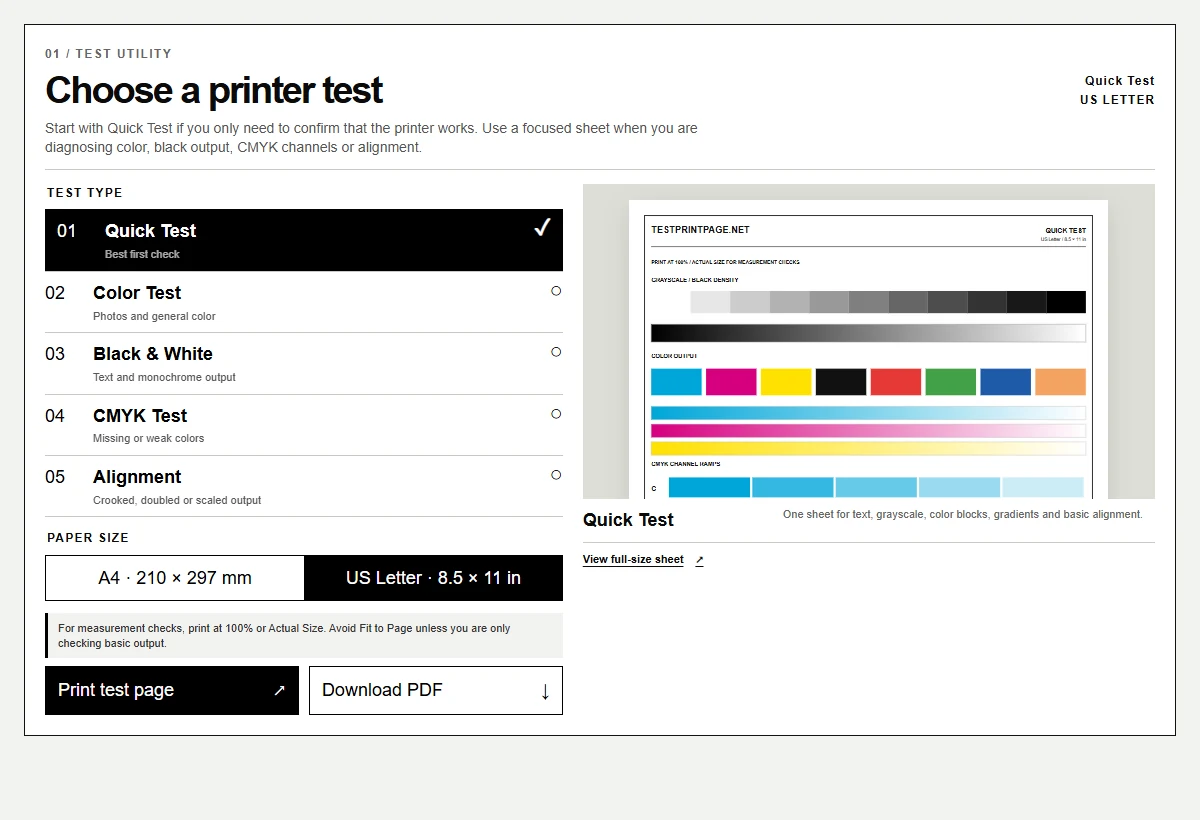
A useful test is simple: choose the pattern that matches the problem, use the correct paper size, print without unwanted scaling, then compare the sheet with the on-screen reference.

- 01
Choose the test that matches the symptom
- 02
Select A4 or US Letter to match the loaded paper
- 03
Use 100% or Actual Size for alignment and measurement checks
- 04
Compare the print with the clean preview and follow the next step
Printer test page questions
01What is a printer test page?
A printer test page is a controlled sheet of text, lines, grayscale and/or color patterns used to check print quality, alignment and whether the printer is producing the expected output.
02Which test should I print first?
Use Quick Test first unless you already know the symptom. It gives you a broad check without using several sheets.
03Can I download the test page as a PDF?
Yes. Every test on this site has an A4 and US Letter PDF. The PDF is usually the most predictable option when you want to save or reprint the same test later.
04Should I use A4 or US Letter?
Use the size that matches the physical paper in your printer. A4 is 210 × 297 mm; US Letter is 8.5 × 11 inches.
05Why does my test page look different from the screen?
Screens emit RGB light while printers use inks or toner and a color-management pipeline. Paper, driver settings, print mode and the printer itself all affect the final output.
06Does this test work with HP, Canon, Epson and Brother printers?
The sheets are brand-neutral and can be printed by most printers that accept normal PDF or browser print jobs. Built-in manufacturer diagnostic pages are separate and vary by model.
07Can a test page tell me whether a cartridge is empty?
It can show that a color is weak or missing, but it cannot directly read cartridge levels. Check the printer's status screen or official software for reported ink or toner levels.
08Do you upload or analyze my printed page?
No. The core tool does not require an upload or account. You choose a test sheet, print it locally and inspect the paper yourself.
09Can I use the preview as a printer test image or picture?
Yes. If you need a printer test picture or image reference, each sheet has a vector preview. For the most repeatable physical test, use the PDF or Print button because the page dimensions are controlled more clearly.
010What if the printer prints a test page but not my documents?
That usually means the printer can produce output, while the failure may be tied to the app, document, print queue, driver or selected printer. Try another simple document and check the queue before assuming a hardware fault.
011What if the test page will not print at all?
Check that the printer is online, selected correctly and has no paused or stuck jobs. If possible, print the printer's own built-in status or diagnostic page; if that also fails, focus on the device, connection or printer-side setup.
012Should I print a full solid black page to test black ink?
Usually no. A solid black page uses more ink or toner and gives less diagnostic detail. The black-and-white test combines density patches, grayscale, text and fine lines so you can see more with less waste.
013Can this be used as a printer ink or toner test?
Yes for visual output checks. The color, CMYK and black-and-white sheets can reveal a weak or missing ink/toner channel, banding or uneven density, but they cannot electronically read cartridge or toner levels.
Start with one sheet.
Use Quick Test for a broad check, or choose the focused test that matches what you see on the page.